
Castlevania: Belmont's Curse Not Launching? PC Fixes
Castlevania: Belmont's Curse not launching? Fix black screens with refresh rate and V-Sync changes, plus simple steps for PC and handheld startup issues.
Jump to
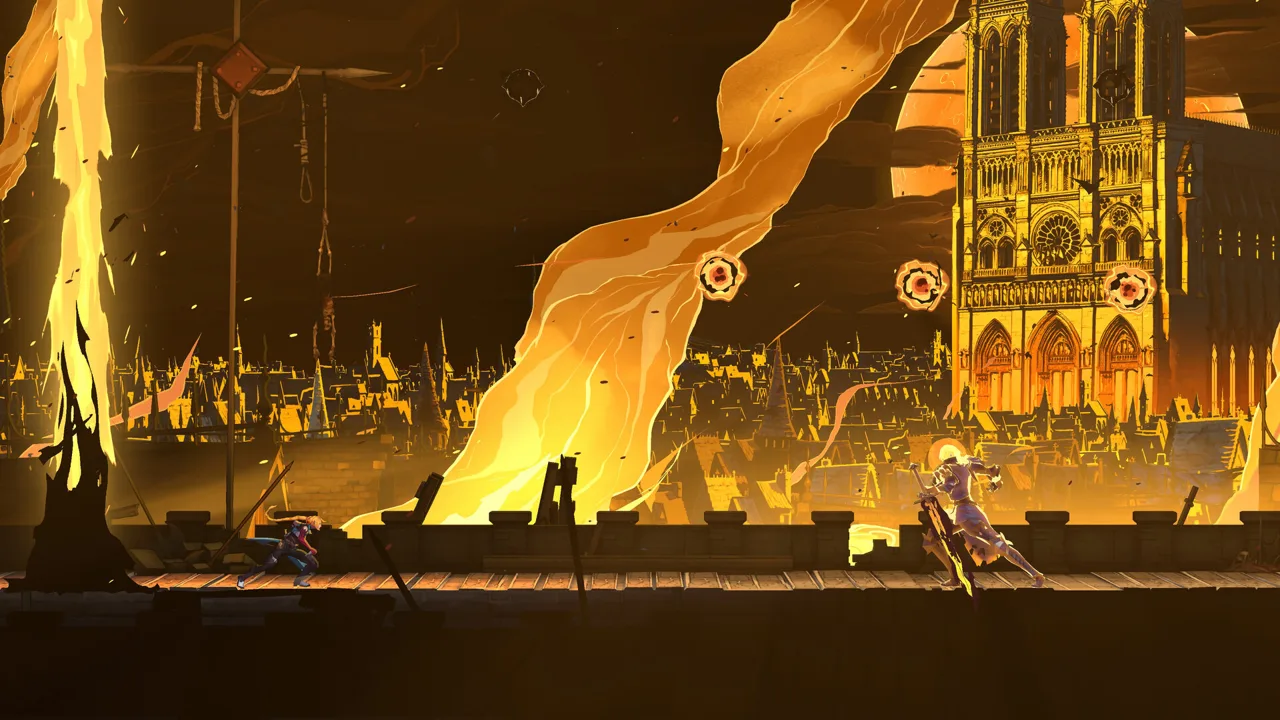
Why Is Castlevania: Belmont's Curse Not Launching?
Castlevania: Belmont's Curse not launching can leave you staring at a black screen before you ever reach the title menu. The PC launch issue has a specific workaround: temporarily lower your display refresh rate, enable V-Sync in the game, then restore your usual refresh rate. If you're troubleshooting Castlevania: Belmont's Curse not launching on Steam or Xbox on PC, start with that display fix.
The launch-period problem involves V-Sync being disabled while the frame rate setting is Unlimited. KONAMI has acknowledged this combination as a cause of startup failure on both PC storefronts. You need to get into the title menu long enough to change the video setting.
Before changing anything, match your symptoms to the right problem. A black screen, a title-screen block, and uneven gameplay call for different troubleshooting.
| What happens | Relevant issue | Where to start |
|---|---|---|
| The game opens to a black screen on PC | Startup failure associated with V-Sync off and Unlimited FPS | Temporarily lower the display refresh rate, then enable V-Sync |
| ROG Ally displays a black screen | A refresh-rate adjustment can allow startup | Try 120 Hz or lower |
| You cannot proceed past the title page after saving and returning there | A system-language issue affecting certain languages, mainly Arabic | Check the title-screen issue section below |
| Steam Deck gameplay hitches or UI extends off-screen | Performance and interface problems | Check the handheld section below |
Display refresh rate and game frame rate are different settings. Refresh rate, measured in Hz, belongs to your display configuration. The FPS limit belongs to the game or graphics software. Keep that distinction in mind when following the fixes: changing one does not mean you have changed the other.
Apply the Refresh Rate and V-Sync Fix
For Castlevania: Belmont's Curse not launching on Windows, the official workaround temporarily sets your monitor below 60 Hz. Once you can access the menu, enable V-Sync and restore your normal display setting.
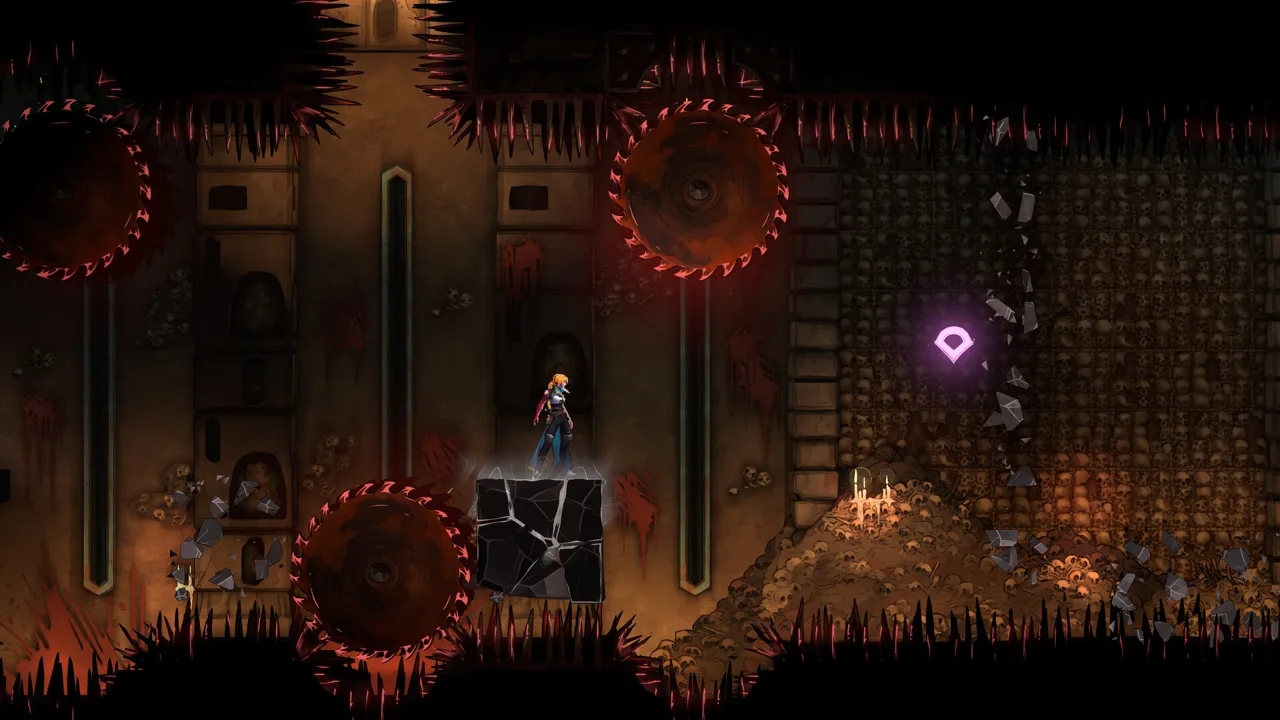 Image: Steam / KONAMI
Follow this sequence:
- Right-click an empty area of the Windows desktop and select Display settings.
- Open Advanced display, sometimes labeled Advanced display settings.
- Change the monitor refresh rate to an available setting below 60 Hz.
- Launch Castlevania: Belmont's Curse through Steam or Xbox on PC.
- From the title screen, open Settings, then Video Settings.
- Turn V-Sync ON, then close the game.
- Return to Windows display settings and restore your original refresh rate.
- Launch the game again.
The temporary refresh-rate change gets you to the menu; enabling V-Sync is the setting change you carry into the next launch. Complete both parts before judging whether the workaround helped.
| Setting | Value during troubleshooting | What to do afterward |
|---|---|---|
| Windows display refresh rate | Below 60 Hz for the official workaround | Restore your original refresh rate after enabling V-Sync and closing the game |
| In-game V-Sync | On | Keep it enabled while troubleshooting the launch issue |
| In-game FPS limit | Avoid returning to Unlimited with V-Sync off | Keep the problematic combination out of your setup |
What if your display only offers 60 Hz?
Try the available 60 Hz mode. Launches have succeeded after changing a display from 300.18 Hz to 60.04 Hz, and a 60 Hz setting is another practical option for getting past the black screen.
Keep the distinction clear: KONAMI's instructions specify below 60 Hz, while the successful 60 Hz workaround uses a slightly different threshold. If your display offers a lower supported mode, follow the official sequence first. If it offers 60 Hz, try that before moving to another workaround.
You do not need to leave a high-refresh monitor at the temporary setting throughout your play session. The instructions explicitly include restoring its original refresh rate after switching V-Sync on.
For Castlevania: Belmont's Curse not launching, that final relaunch matters. Reaching the title screen once lets you change the setting; launching again after restoring the display checks whether the complete workaround has worked for your setup.
Try These Other Black Screen Workarounds
If the main sequence does not get you to the title screen, try another display-related workaround. Keep each attempt focused so you can tell which change helped.
The alternatives below address the same immediate obstacle: getting past the black screen long enough to access Video Settings.
| Alternative | What to try | Follow-up |
|---|---|---|
| NVIDIA frame-rate limit | Try limiting the game to 59 FPS in the NVIDIA app | If it opens, enter Video Settings and enable V-Sync |
| Another monitor | Try launching with a different monitor | Once you reach the menu, enable V-Sync |
| Another launch attempt | Try launching again; startup has sometimes succeeded after three or four attempts | Use the successful launch to change V-Sync |
These options have different roles. A 59 FPS cap limits rendered frames through NVIDIA software. Changing monitors alters the display setup. Repeated launch attempts leave the underlying settings untouched, so use any successful attempt to reach the menu and make the V-Sync change.
Avoid bouncing between all three at once. Try one, check whether the title screen appears, and then move on if you still get a black screen. That keeps the process manageable and makes a successful adjustment easier to identify.
Keep refresh rate and FPS caps separate
A 59 FPS limit in the NVIDIA app is not the same as setting a monitor below 60 Hz in Windows. The NVIDIA workaround targets the game's frame rate; the official startup sequence changes the display refresh rate before turning on V-Sync.
Likewise, the ROG Ally workaround below uses a different display threshold. Do not combine every number into a single requirement.
If Castlevania: Belmont's Curse not launching is your only problem, concentrate on reaching the title menu. Anti-aliasing and resolution adjustments become relevant once you can actually access the game's settings and play.
Handle ROG Ally and Steam Deck Problems Separately
Windows handhelds and Steam Deck have different launch-period problems. A setting that helps an ROG Ally black screen does not resolve Steam Deck's uneven performance.
ROG Ally black screen
On ROG Ally, try setting the display to 120 Hz or lower through the quick-access menu or Armoury Crate. This adjustment has allowed the game to start.
After reaching the title screen, enable V-Sync in Video Settings. If startup remains blocked, follow the broader Windows workaround above.
The ROG Ally Z1 Extreme can deliver more than 60 FPS at 1080p in 25W mode after the startup issue is resolved. That separates the black-screen problem from the handheld's ability to run the game once it opens.
Steam Deck hitching and cropped UI
The launch build has inconsistent Steam Deck performance, including hitching at 30 or 40 FPS. Switching among numerous Proton versions, including GE versions and Proton Experimental, did not resolve that behavior.
Steam Deck also has a separate interface issue that can place UI elements partially off-screen. KONAMI is investigating a fix.
| Handheld problem or setting | Relevant adjustment | Scope |
|---|---|---|
| ROG Ally black screen | Set the display to 120 Hz or lower | Startup workaround |
| ROG Ally performance dips with SMAA | Try FXAA | Small dips during zoomed-out gameplay |
| Cropped gameplay at 16:10 or 21:9 | Force a listed resolution such as 720p or 1080p | Gameplay framing |
| Steam Deck hitching | Wait for performance patches | Launch-build frame pacing |
| Steam Deck UI partly off-screen | Watch for KONAMI's UI fix | Interface placement |
The PC version offers fullscreen, borderless, and windowed modes, along with resolution, V-Sync, frame-rate cap, anti-aliasing, and brightness options. It does not include upscaling or separate lighting and shadow controls.
For cropped gameplay, choose one of the listed resolutions: 720p, 1080p, 1440p, or 4K. Keep gameplay cropping separate from the acknowledged Steam Deck UI problem.
If you're searching for Castlevania: Belmont's Curse not launching on a handheld, identify the device before applying a fix. ROG Ally has a practical refresh-rate workaround; Steam Deck's launch-period trouble also includes performance and interface issues after startup.
Recognize Title-Screen Blocks and Input Problems
A game that reaches the title screen but refuses to proceed presents a different symptom from a black screen immediately after launch.
KONAMI has acknowledged a problem affecting certain system languages, mainly Arabic, after players save and return to the title page. The affected platforms are:
- PlayStation 5
- Xbox Series X|S
- Steam
- Xbox on PC
Keep the trigger in mind: the game has already opened, and the block appears after saving and returning to the title page. That pattern differs from the Windows startup failure associated with V-Sync and Unlimited FPS.
For this title-page issue, follow KONAMI's patch updates through the Castlevania: Belmont's Curse official website. During the launch period, a patch addressing the acknowledged issues was in development.
Freezing with ghost inputs
Startup freezing has also appeared alongside unwanted inputs and virtual-controller software. If you use vJoy and experience that combination, try disabling vJoy before launching again.
Keep that adjustment tied to the relevant symptom. A black screen on a high-refresh display points you toward the refresh-rate and V-Sync workaround; freezing alongside ghost inputs gives you a reason to check the virtual input device.
When Castlevania: Belmont's Curse not launching turns into a working title menu, finish the setting change and check the next launch. If gameplay then hitches or the interface is cropped, move to the relevant performance or display adjustment instead of repeating the startup sequence.
FAQ
What should I try first for Castlevania: Belmont's Curse not launching?
Temporarily lower your Windows display refresh rate below 60 Hz, launch the game, and enable V-Sync under Settings → Video Settings. Close the game, restore your original refresh rate, and launch again. This is the official workaround for the PC startup issue involving V-Sync off and Unlimited FPS.
Do I have to keep my monitor below 60 Hz?
No. The workaround includes restoring your original refresh rate after enabling V-Sync and closing the game. The lower display setting is a temporary step used to reach the title menu.
Why does Castlevania: Belmont's Curse show a black screen on ROG Ally?
The launch-period black screen can respond to a display refresh-rate change. Try 120 Hz or lower through the quick-access menu or Armoury Crate. If you reach the title screen, enable V-Sync in Video Settings.
Will changing Proton fix Steam Deck performance?
Proton switching did not resolve the launch build's inconsistent performance, even across numerous versions. Hitching at 30 or 40 FPS and partially off-screen UI are separate issues from the Windows black-screen workaround. Wait for patches addressing those Steam Deck problems.
Continue with
 Castlevania: Belmont's Curse System Requirements RedditCastlevania: Belmont's Curse system requirements reddit guide: compare PC specs, storage needs, Steam Deck frame rates, and PC controls before you play.
More in Support
Castlevania: Belmont's Curse Demo Black Screen Fixes
Fix the Castlevania: Belmont's Curse demo black screen with refresh rate changes, VSync adjustments, and a settings reset. Get back into the game safely.
Castlevania: Belmont's Curse Is Very Slow on Switch 1
Castlevania: Belmont's Curse is very slow on switch 1. Understand the 30fps target, separate choppiness from movement speed, and get practical combat tips.
Join the community
Official channels for news, updates and player help: